Using mielwm
Layouts and gaps
Tile a workspace's windows, set the gaps around them, and leave room for a status bar at the top.
The three layouts
Each workspace lays its windows out one way, and you can change it any time.
| Keys | Layout | What you get |
|---|---|---|
| ⌥/ | Tiles | The screen split between the windows. Again flips side by side and above each other. |
| ⌥, | Stack | One window at a time at full size. Again goes back to tiles. See Stacks. |
| ⌥. | Floating | The focused window keeps its own size and place. Again tiles it. See Floating windows. |
A new workspace starts with the layout from Settings > Layout > New windows. Click Tiles, Stack or Floating there.
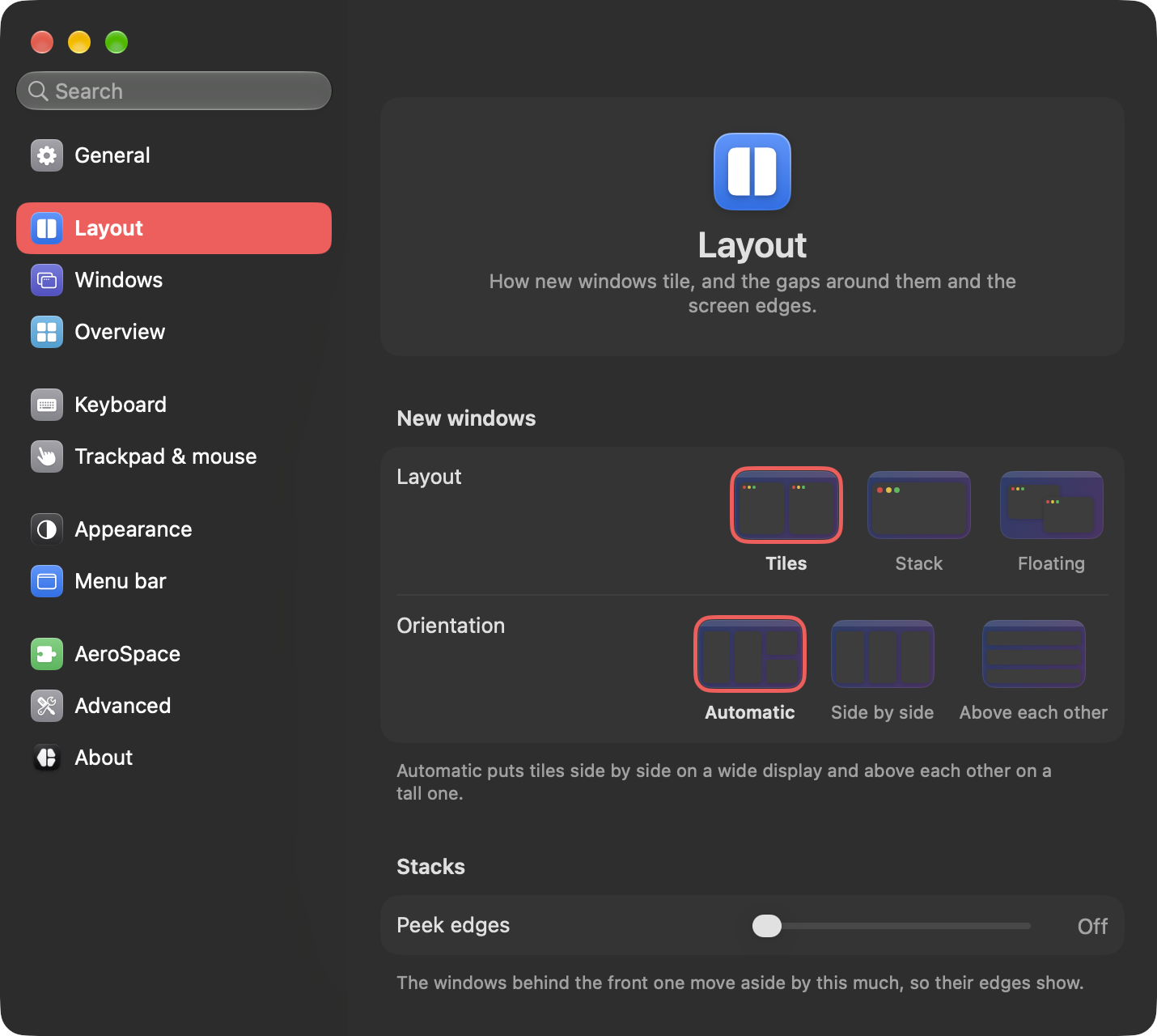
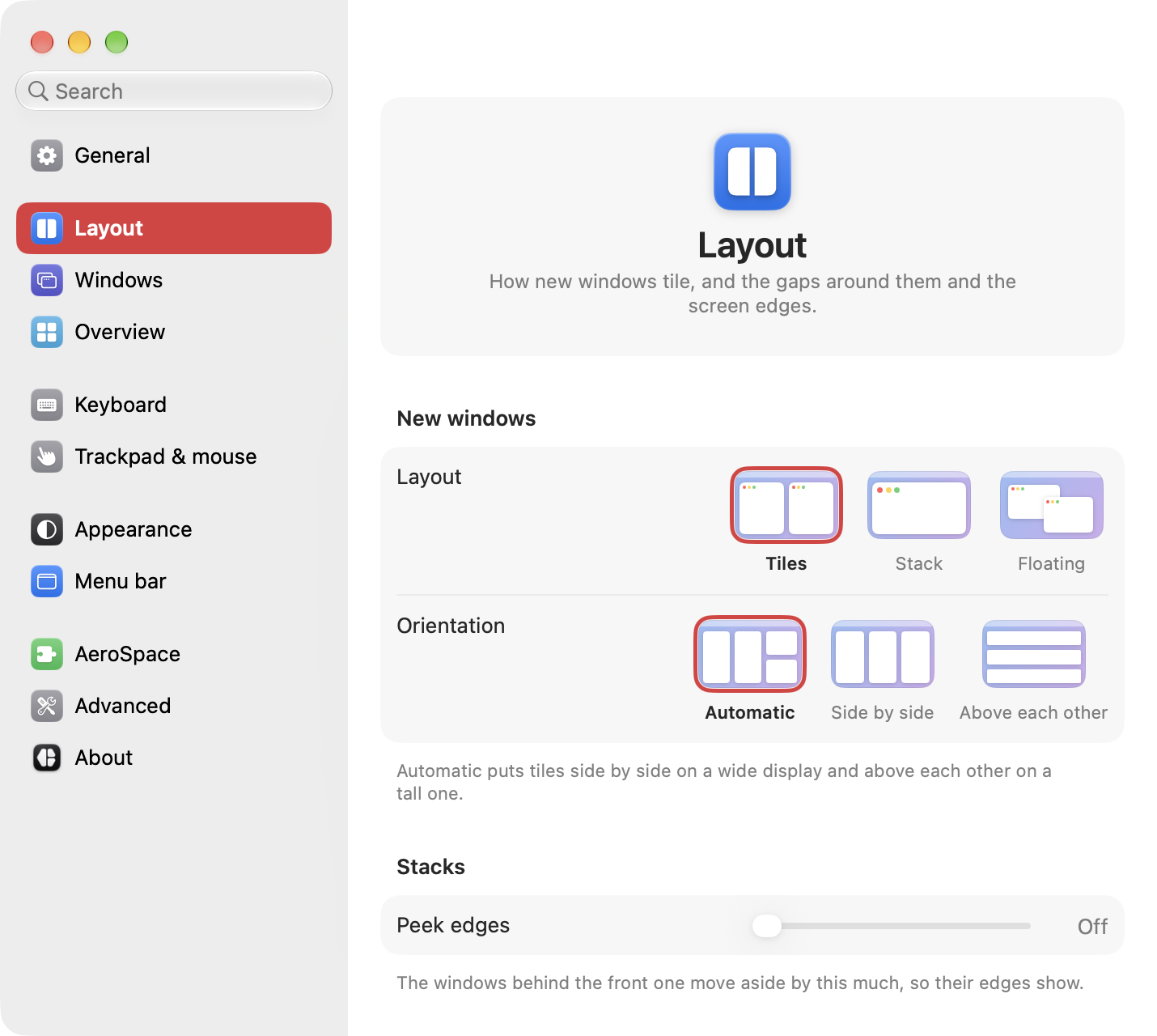
Tiles
Tiles split the screen between the workspace's windows. Orientation, in Settings > Layout, decides which way:
- Automatic puts tiles side by side on a wide display and above each other on a tall one. It's the default.
- Side by side always splits left to right.
- Above each other always splits top to bottom.
Resizing tiles
Drag the edge between two tiles to move the split. A tiled window can't be dragged smaller than its tile, so a window you drag away goes back to its tile when you let go.
| Keys | What it does |
|---|---|
| ⌥=, ⌥- | Grow or shrink the focused tile by 50 points. |
| ⌥⇧ arrows | Swap the window with its neighbour that way. |
resize from the command line takes any amount, like mielwm resize smart +100. You can also bind it to a key in the config file.
An app that resizes its own window, like an Electron app restoring its size, doesn't move the split. Only your drags and keys do. A window that refuses its tile's size settles at the size it wants.
Gaps
The gaps match AeroSpace's by default: 8 points between windows and 12 points around the edge. Set them in Settings > Layout > Gaps, which has a field for each:
- Between windows, side by side
- Between windows, above each other
- Left edge, Right edge and Bottom edge
- Top edge and Top gap, described below
The small desktop above the fields redraws as you type. Point at a field and its gap lights up, with its size.
The top edge
Settings > Layout > Top edge decides how much room the tiles leave at the top of each display.
| Top edge | What it does |
|---|---|
| Automatic | Finds a status bar along the top of each display, such as SketchyBar or another AeroSpace-compatible bar, and adds its height to the top gap. A display without one gets the top gap alone. This is the default. |
| Same as other edges | The top gap alone, on every display. |
| Custom | Top gap, built-in display for the built-in display, and Top gap, other displays for the rest. |
With Automatic, the line under the setting says what it found on the display the Settings window is on, like "SketchyBar, 32 pt", or "No bar found on this display." mielwm looks again when an app opens or quits and when displays change.
A bar counts when it's a window pinned to the top of the display or just under the menu bar, at least 80% as wide as the display and 20 to 80 points tall. A menu bar that hides itself needs nothing, since macOS leaves its room when it shows.
Fill, fullscreen and pin
| Keys | What it does |
|---|---|
| ⌥T | Fill the screen with the focused window, 12 points from the edges. Again puts it back. |
| ⌥F | Fill the screen with no gaps. The menu bar stays visible. Again puts it back. |
| ⌥O | Pin a floating window to the screen, so it stays put while the canvas moves under it. |
These are mielwm's own. For macOS full screen, use the green button or ⌃⌘F in the app. mielwm leaves a full screen window alone and keeps its tile for when it comes back.