Using mielwm
Floating windows
Let a window keep its own size and place, and choose which apps always float or always open on one workspace.
On this page
Floating a window
⌥. floats the focused window. A floating window keeps whatever size and place you give it, above the tiles. ⌥. again tiles it back into the workspace it sits on.
A floating window belongs to the workspace it's on, so it's still there when you come back. Windows that can't be resized always float.
| Keys | What it does |
|---|---|
| ⌥⇧ arrows | Nudge the window one grid step, 80 points. Hold to keep going. |
| ⌥=, ⌥- | Grow or shrink it by one grid step, around its center. |
| ⌥O | Pin it to the screen, so it stays put while the canvas moves. |
| ⌃⌥ + drag | Move it from anywhere inside, or resize it with the right button. See Trackpad and mouse. |
Tidy windows, in the menu bar item's menu or ⌘A in the overview, lines up every floating window on the canvas, grouped by app. ⌘Z in the overview undoes it.
Apps that always float
Some apps make no sense as tiles. Their windows float as soon as they open. Settings > Windows > Floating apps lists them: System Settings, Activity Monitor, Calculator and Archive Utility by default.
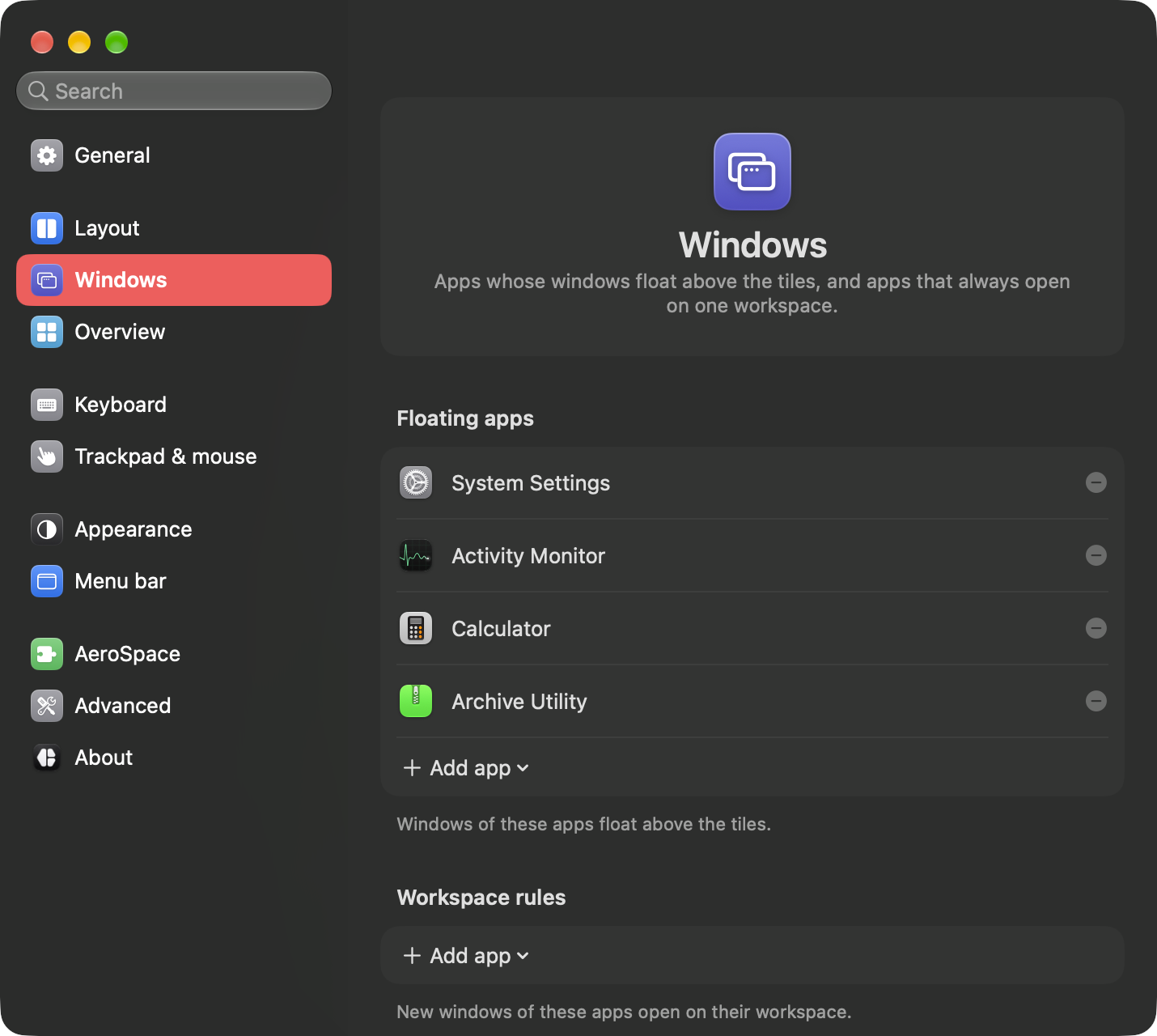
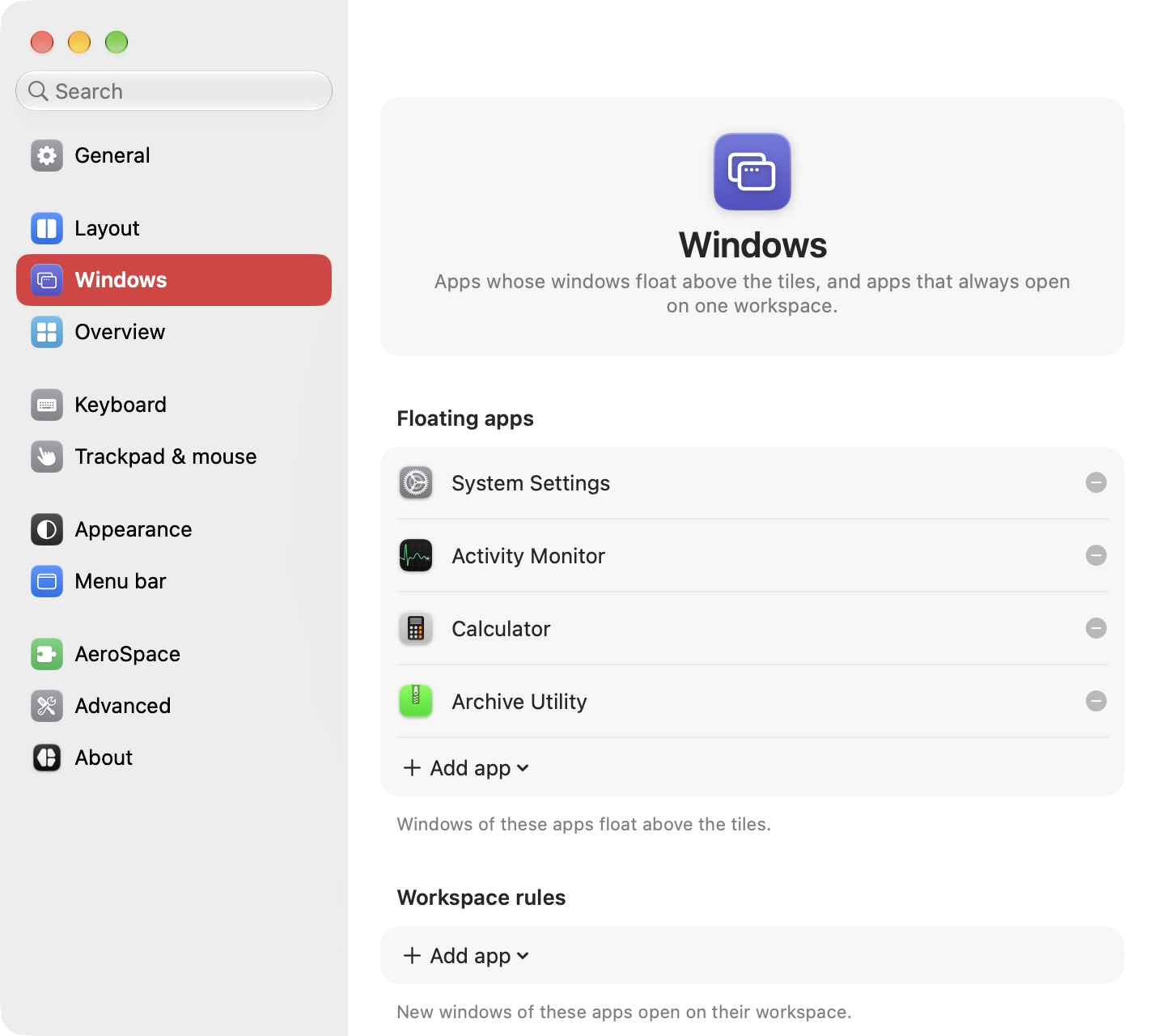
Click Add app to pick a running app or choose one from Finder. Click the minus button next to an app to take it off the list.
Apps that open on one workspace
Settings > Windows > Workspace rules sends every new window of an app to a fixed workspace, so Spotify can always open on 2 and Discord on 1. Add an app, then pick its workspace from the menu next to it.
Rules by name or title
To float only some of an app's windows, like Picture-in-Picture, or to match apps by name, write a window rule in the config file. A window rule wins over both lists above.
Floating everywhere
Pick Floating under Settings > Layout > New windows, and new windows float wherever they open. Workspaces still work, and ⌥/ tiles any one of them. With floating as the default, the ⌥ arrows and ⌥⇧ arrows reach windows on other workspaces too.