Get started
First steps
Give mielwm its two permissions, set up macOS the way it likes, and try the keys you'll use most.
On this page
Permissions
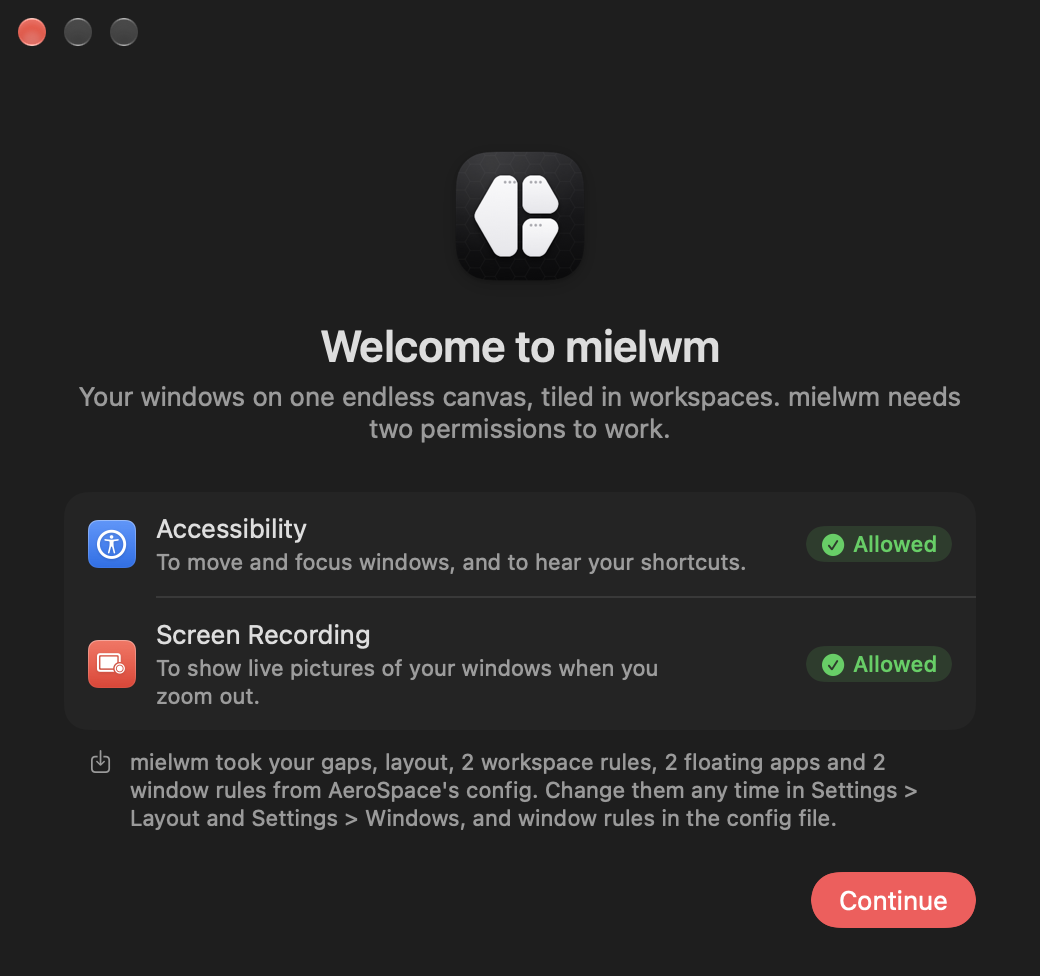
mielwm asks for two permissions, both under System Settings > Privacy & Security. The welcome window lists them, with a button that opens the right page for each and a badge on each one you've allowed.
Accessibility
Accessibility lets mielwm move and focus windows and hear its shortcuts. It can't do anything without it. If you close the welcome window before you allow it, mielwm stays paused. Choose Resume mielwm in its menu to see the window again.
Screen Recording
Screen Recording gives mielwm the live window pictures in the overview. Without it everything else still works, and the overview shows plain cards instead of pictures. macOS applies this permission only after mielwm restarts, and asks you to confirm it again every so often.
The pictures stay in memory while mielwm runs. mielwm doesn't save them to disk, and it has no network code, so nothing about your screen leaves your Mac.
Before you start
Quit other window managers
Two window managers moving the same windows fight each other. If AeroSpace is running, mielwm offers to quit it and waits until it's gone. Set start-at-login = false in ~/.config/aerospace/aerospace.toml so it doesn't come back at login. Import your config brings your AeroSpace gaps, rules and keys over.
Turn off separate Spaces
Turn off "Displays have separate Spaces" under System Settings > Desktop & Dock > Mission Control, then log out and back in. With it on, a window can't sit across two displays. mielwm reminds you once.
Use one Space
mielwm's workspaces replace Spaces, so keep one Space per display. A window you put in macOS full screen gets a Space of its own, and mielwm leaves it alone there. When it leaves full screen, it goes back to its tile.
Your first minute
Every window you had open lands on a workspace of its own, numbered from 1. Try these:
| Keys | What happens |
|---|---|
| ⌥1 … ⌥9 | Go to that workspace. |
| ⌥⇧2 | Move the focused window to workspace 2 and go with it. |
| ⌥/ | Tile the workspace's windows side by side. Again flips them above each other. |
| ⌥, | Stack them, one at a time at full size. |
| ⌥. | Float the focused window. |
| ⌃⌥G | Zoom out to see everything. Type to search, Return to go. |
| Three fingers left or right | The next or previous workspace. |
Each time you switch, the workspace numbers show for a moment at the bottom of the display, and the menu bar item shows them too. Menu bar and indicators covers both.
If you used AeroSpace, the keys already match. Keyboard has the full list, and Settings > Keyboard changes any of them.
Where to change things
Open Settings from the mielwm menu bar item, or press ⌘, in the overview. Every setting is also a line in ~/.config/mielwm/config.json, which mielwm rereads when you save it. Settings walks through each pane.