Using mielwm
Keyboard
Every shortcut mielwm has, and how to change them. The defaults are AeroSpace's wherever AeroSpace has the same action.
Anywhere
| Keys | What it does |
|---|---|
| ⌃⌥G | Zoom out to the overview, and back. |
| ⌥1 … ⌥9 | Go to that workspace. |
| ⌥⇧1 … ⌥⇧9 | Move the window to that workspace and go with it. |
| ⌃←, ⌃→ | Previous, next workspace. |
| ⌥/ | Tile. Pressed again, the tiles flip between side by side and above each other. |
| ⌥, | Stack the workspace, or go back to tiles. |
| ⌥. | Float the window, or tile it again. |
| ⌥ arrows | Focus the nearest window that way, within the workspace. In a stack, the next or previous window. |
| ⌥⇧ arrows | Swap tiles, or nudge a floating window a grid step. Hold to keep going. |
| ⌥Tab, ⌥⇧Tab | A tap goes back to the last window. Hold ⌥ for the list and let go to switch. In a stack, the next window. |
| ⌥T | Fill the screen, keeping the gaps. Again to put it back. |
| ⌥F | Fill the screen with no gaps, the menu bar still visible. Again to put it back. |
| ⌥O | Pin the window so it stays put while the canvas moves. |
| ⌥-, ⌥= | Shrink, grow the window. |
| ⌃⌥ + drag | Move a window with the left button, resize it with the right. |
Focus and move stop at the edge of the workspace, the way AeroSpace's do. To have them go on into the next workspace, turn on Settings > Layout > Focus and move past the edge. In the overview the arrows always reach every window. Focus and switching has the details.
⌥0, ⌥⇧0 and ⌥; do nothing on purpose, so they never type º, ‚ or … by accident.
⌃← and ⌃→ are also Mission Control's keys for switching Spaces. mielwm uses one Space, so they're free, but Settings warns you about it.
Without a key
These actions have no shortcut until you give them one, in Settings > Keyboard or the configuration file:
| Action | Section in Settings > Keyboard | What it does |
|---|---|---|
| Last workspace | Workspaces | Go to the workspace you were on before. Again goes back. See Focus and switching. |
| Close window | Windows | Close the focused window, as a click on its close button would. The app may still ask to save. |
| Minimize window | Windows | Minimize the focused window to the Dock. |
| Tidy windows | Layout | Line up the floating windows on the canvas, grouped by app. |
| Settings | mielwm | Open Settings. |
resize takes any amount, like resize smart +100 or resize width -50. It has no row in Settings, so bind it in the config file. Keys bound that way show in Settings > Keyboard under From config.json. Command line explains the forms.
In the overview
| Keys | What it does |
|---|---|
| Type | Search window titles and app names. |
| ↑ ↓, Tab ⇧Tab | Move through the results. |
| ⌘1 … ⌘9 | Go straight to that result. |
| Return | Go to the selected window. |
| ⇧Return | Bring the selected window to where you are. |
| Esc | Clear the search, then go back to where you started. |
| Arrows | Select the nearest window that way. |
| ⇧ arrows | Nudge the selected window. |
| ⌘ arrows | Pan. |
| ⌘=, ⌘- | Zoom in, out. |
| ⌘0 | Fit every window. |
| ⌘F | Frame the selected window. |
| ⌘A | Tidy every floating window onto the grid. |
| ⌘Z, ⌘⇧Z | Undo, redo. |
| ⌘⌫ | Clear the search. |
| ⌘, | Open Settings at Appearance. |
| ⌘/ | Show every key on screen. |
The ⌃ versions, like ⌃0 and ⌃Z, work too, and so does F1 for the key list. In the search field, ⌃U, ⌃W, ⌃N and ⌃P work the way they do in any Mac text field.
Changing shortcuts
Open Settings > Keyboard. Click a shortcut and press the new keys. Esc cancels and Delete removes it. The arrow next to a changed row restores its default, and Restore defaults… at the bottom does every row. The search field at the top finds a shortcut by name.
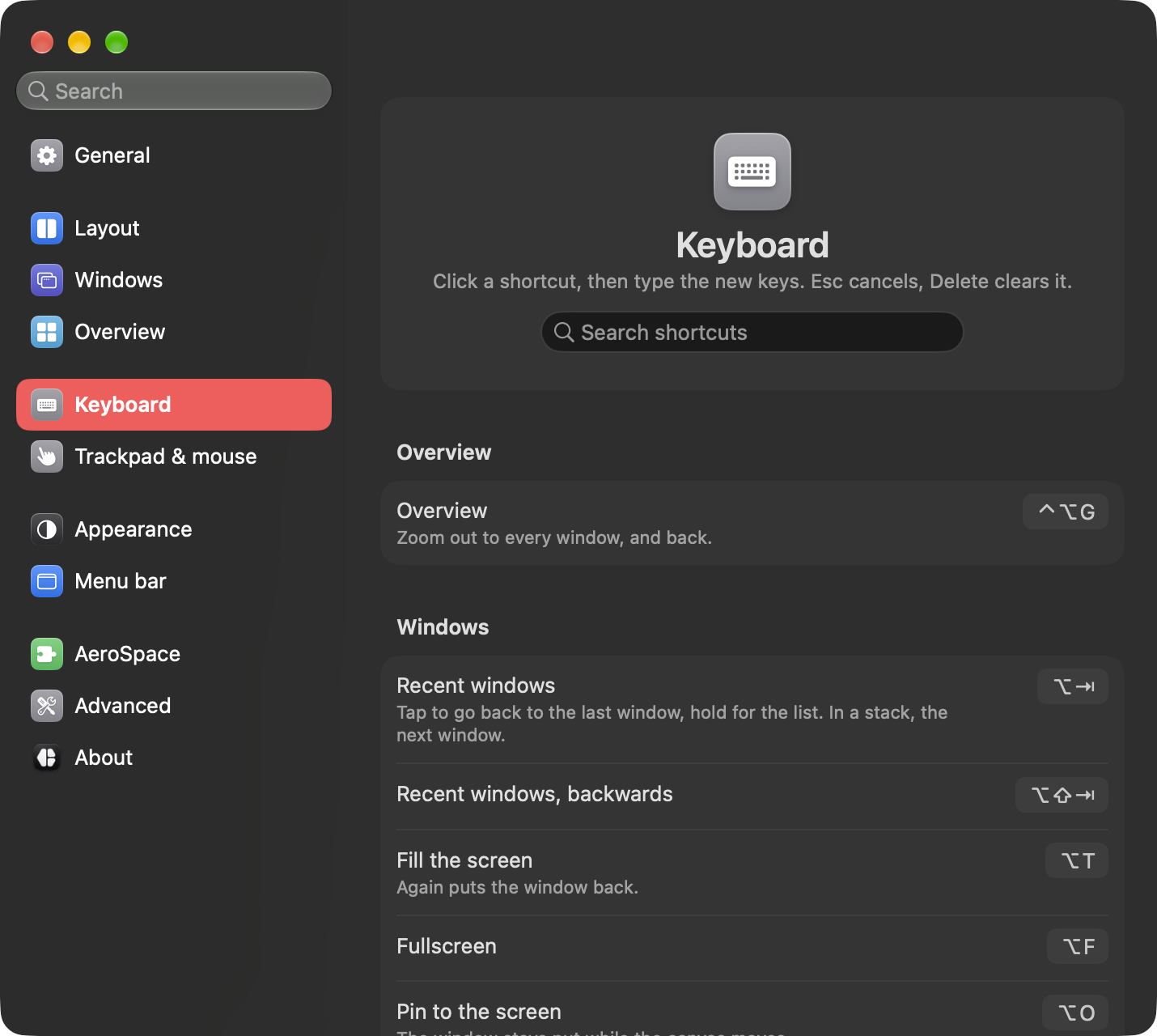
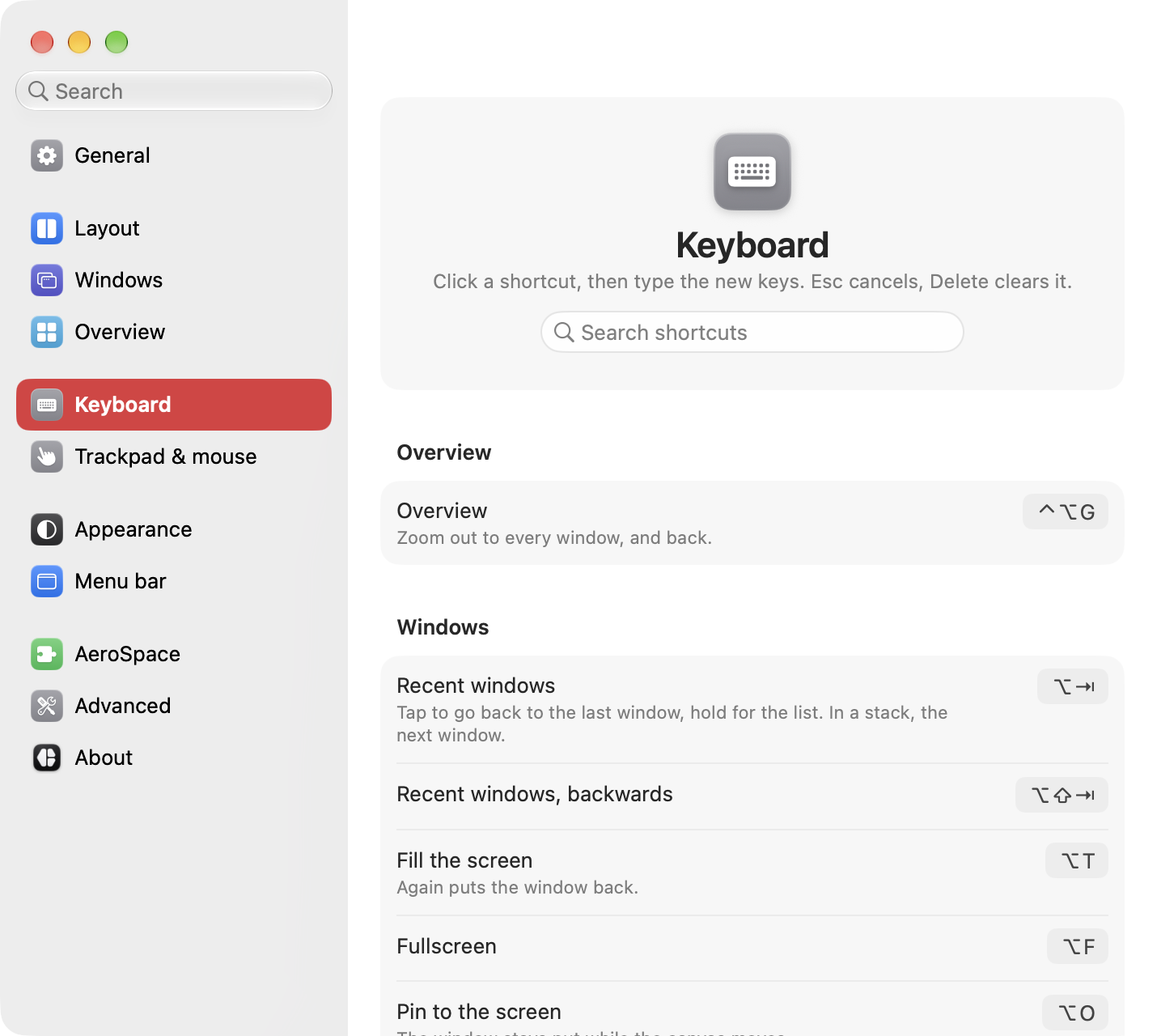
Keys that come in families take one row each. One row goes to a workspace, shown as "⌥1-9", one moves a window there, "⌥⇧1-9", and one covers focus and move, "⌥←→↑↓". Click the row, hold the new modifiers and press any one of its keys, and the whole family changes together. If you changed some of them one by one in the config file, the row says Custom and opens up to show each key.
If the keys you press already belong to another action, the row says which one, and Use here moves them to this action. It also warns when macOS uses the same keys, such as screenshots or switching input sources. mielwm refuses ⌘Q, ⌘W, ⌘C, ⌘V and the other keys every app relies on, because a global shortcut on them would break them everywhere.
While you record, mielwm's own shortcuts pause, so keys it already uses reach the recorder.
Shortcuts are saved as keys:<chord> entries in the configuration file, so you can also edit them there.